How to perform an inspection
Overview
Every inspection goes from walkthrough to signed report in four stages.

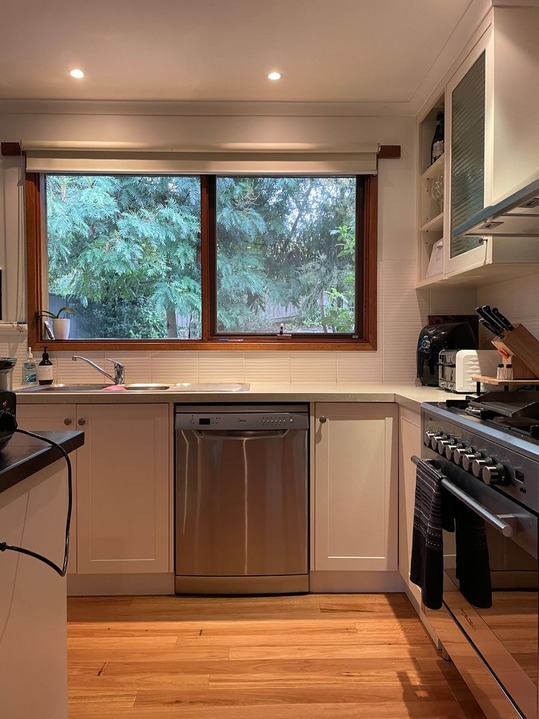
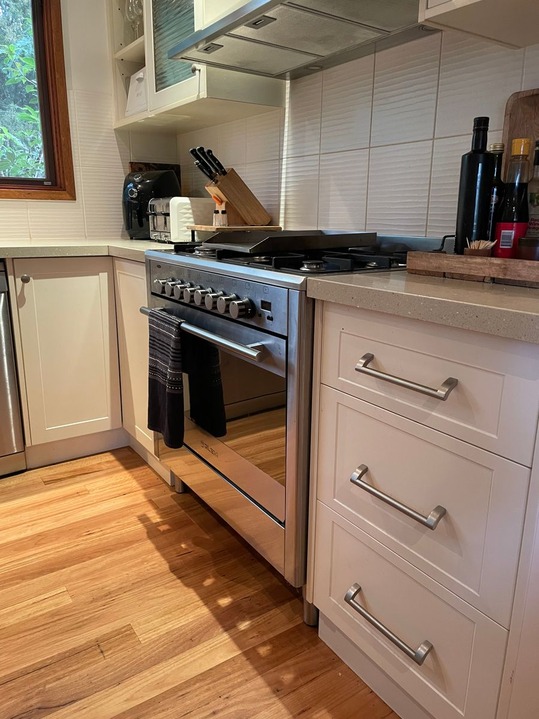
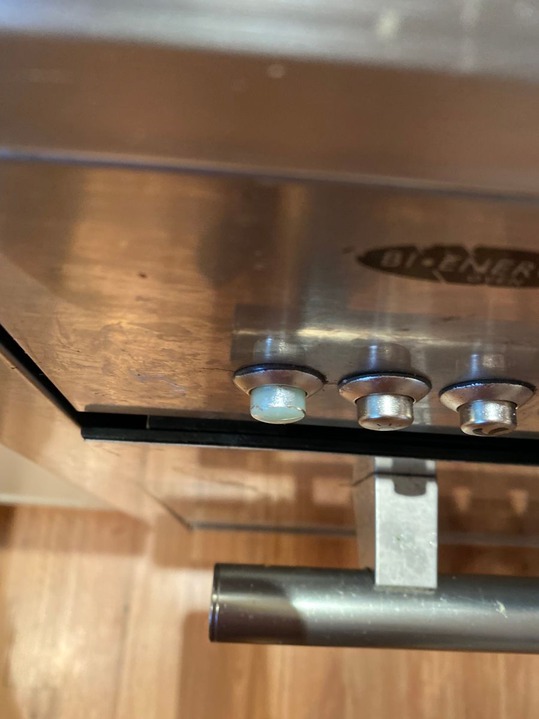
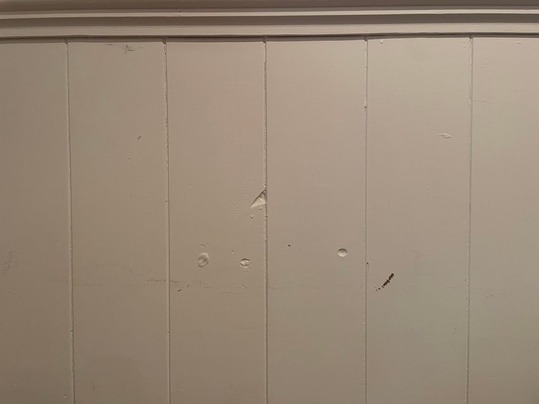
- Inspect in the app. Walk the property room by room, sign on the spot, then upload.
- Review on the web. Check the report and tweak anything before it goes out.
- Share it your way. Email it, send a secure link, or show a QR code in person.
- They review, then sign. Anyone signing can add their own notes, photos or video first.
This guide walks through every step in the app. The app suggests the rooms to inspect, keeps a checklist for each one, and tells you what's still left before you finish. You can run the whole inspection without signal, and only need an internet connection to upload it.
Step 1: Add a property
Start by adding the property you want to inspect.
- Enter the property's address.
- Save and you're ready to go.
- If you use myRent, connect it under "Connected accounts" in the app's settings. Your tenancies then appear as properties automatically.
- Have a spreadsheet of properties? Bulk import them on the web, with their contacts and notes.
Step 2: Start the inspection
Open the property and press "Start new inspection". Then choose how to begin.
- From a template. Pick the template that matches the inspection, e.g. Move-in, Routine, Final. Its areas, checklists and instructions come ready. Templates used at this property before are marked "Previously used". If a template is pinned to the property, it's offered first.
- From scratch. Press "Start from scratch" and name the inspection, e.g. Initial. You build it as you walk, area by area.
- myRent tenancies. Choose Initial, Routine or Final first, then a starting point.
Templates are available on the Solo plan and above, and you build them on the web.
Step 3: Let the app guide you room by room
The app opens on "Let's get started". It shows your template's instructions and the first few areas to inspect, e.g. Lounge, Kitchen, Bedroom 1.
- Suggested areas. The suggestions come from your template and the areas you inspected at this property last time. With neither, the app suggests a starter set: Entrance, Hallway, Lounge, Kitchen, Bedroom and Bathroom, among others.
- What's next. Each time you press "Save and continue" on a room, "What's next to inspect?" opens with the areas still to go. Press "Add" on one, or "Custom area" for anything else.
- Instructions. If your template has instructions for an area, they appear when you open it.
- Required areas. Areas your template marks as required carry a "required" badge. You can't finish the inspection until they're done.
- Skipping areas. Skip anything that doesn't apply. Areas you skip stay off the report, so there are no half-empty sections.
Step 4: Capture photos and video
Take wide shots of the room, then close-ups of any issues you find.
- Use "Camera" to shoot, or "Photo library" to add photos you already have.
- Photos and video attach to the area you're in.
- Open a photo to add a note to it, annotate it (paid plans), or move it to another area.
Step 5: Record the room's condition
Every room has a condition: "No issues" or "Requires attention". Without a checklist, you choose one for the whole room.
Condition checklists go further. They break the room into items, e.g. Walls, Carpet, Windows, and you rate each one. Checklists are available on paid plans.
- Checklists come from your template or from this property's last inspection. To start one on any room, press "Use checklist".
- Rate each item: press ✓ if it's fine, or ! if it needs attention. If you press !, add a note describing the issue, e.g. "Crack in plasterboard".
- Use "Add" for a new item. To rename, reorder or remove items, use the menu beside "Checklist". Changes apply to this room only, and your template stays as it is.
- Rate every item before you leave the room. Any item marked ! sets the room to "Requires attention".
- The report lists each rated item with its note.
- Some templates, like HUD's NSPIRE checklist, give each item its own answers instead of ✓ and !. See how to run an NSPIRE inspection.
Step 6: Add notes and to-dos, then wrap up the area
- Add notes on the room's overall condition and tidiness. These appear directly in the report.
- Add a to-do for anything your maintenance team needs to fix.
- Press "Save and continue" to move on to the next area.
Step 7: Finish the inspection
When every area is done, press "Finish inspection". The app holds you back if a required area or a checklist is still unfinished, and tells you which one.
- Add summary notes for the whole inspection (optional).
- Check the report summary to see everything you captured, as it will appear on the report.
Step 8: Get signatures
Under "People & signing", add your details and everyone else involved. For each person, choose whether they'll sign, and add their email if you want to send them the report. The property's contacts are under "Add from contacts", and anyone new you add is saved to them.
- Press "E-sign now" to sign yourself.
- Anyone with you can sign on the spot on your device. Press "Sign" beside their name. They can look over the photos, videos and notes first.
- Anyone else signs later from a secure link, with no app download required. From the link they can also add their own photos and comments.
More on how signing works.
Step 9: Upload
Press "Save & upload". You'll need an internet connection and a myInspections account. Once uploaded, your report is ready.
Step 10: Share the report
- Press "Email signing links" to invite anyone who still has to sign. The "Signatures" card shows who has signed, who has been invited, and any email that bounced.
- Press "Share" to email the report to anyone, copy or share its link, or show a QR code to someone standing next to you.
- View the report online in any browser, or download a professional PDF copy.
More on sharing a report.
That's it. From inspection to signed report in minutes.
Still need help?
Email us and someone on our team will get back to you. We're happy to jump on a call and walk you through it, too.
hello@myinspections.com